File Panel
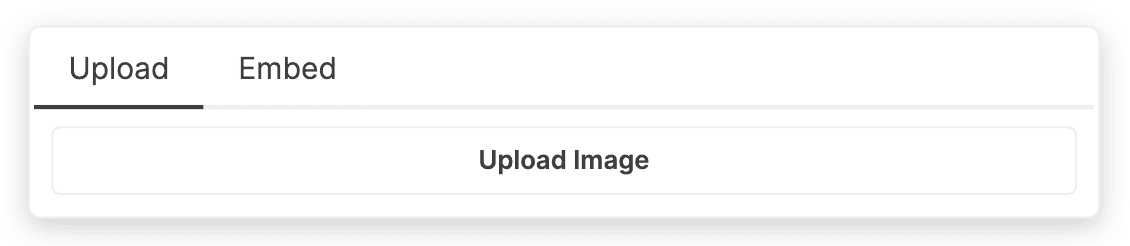
The File Panel appears whenever you select a file (e.g. an image or video) that doesn't have a URL, or when you click the "Replace File" button in the Formatting Toolbar when a file is selected.
File Upload
You may notice that upon creating a new BlockNote editor, the "Upload" tab in the File Panel is missing. This is because you must provide BlockNote with a function to handle file uploads using the uploadFile Editor Option. For the common case of returning a file URL, the callback has this shape:
type uploadFile = (file: File) => Promise<string>;file: The file to upload, such as an image, video, audio file, or document.
returns: A Promise, which resolves to the URL that the file can be accessed at.
Providing uploadFile also enables users to drag and drop files from their computer into the editor, or paste files from the clipboard. BlockNote calls the same callback and inserts blocks for the files. No separate drop handler is needed. When the clipboard also contains a supported text format, BlockNote pastes that content instead of uploading the files.
With the default schema, images, videos, and audio use their respective block types based on the MIME type reported by the browser. Other files, including those with no MIME type, use the generic file block. If you customize the schema, keep defaultBlockSpecs.file as the fallback for unmatched files; see Custom File Blocks to configure file matching.
The example below encodes files as base64 data URLs as a starting point. However, this is only meant for development - in production you should use your own backend:
Resolving URLs
Depending on your backend implementation, the URL returned after uploading a file may not point to the file itself, but an API endpoint which lets you access the file. In this case, said file will need to be fetched from when rendering the block.
BlockNote supports this use case using the resolveFileUrl editor option:
type resolveFileUrl = (url: string) => Promise<string>;